The integration uses OAuth, so there are no API keys to copy or paste. LeadJaw will request permission to create and update company and contact records in your HubSpot portal.
Before you start
You will need the following to complete the setup:
- An active LeadJaw Pro account
- Super Admin or sufficient permissions in your HubSpot portal to authorise third-party app connections
- Your HubSpot portal open in the same browser
If you are on a Starter or Growth plan, you will need to upgrade to Pro before the HubSpot integration becomes available. You can do this from your account settings.
Step 1 - Go to Integrations in your LeadJaw settings
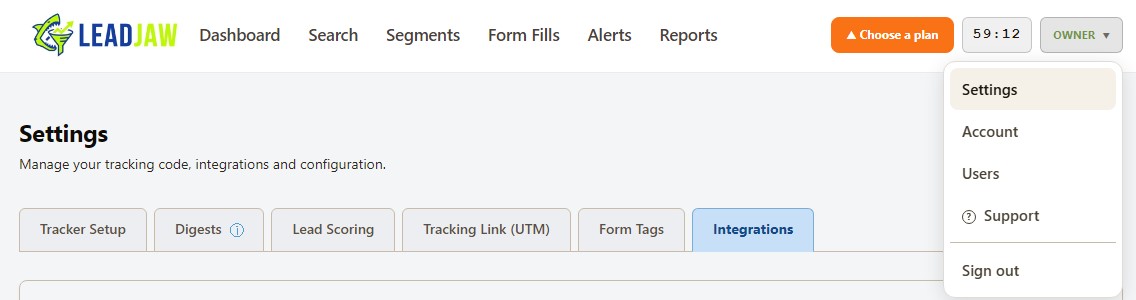
Log into your LeadJaw account and go to Settings. Select the Integrations tab at the top of the settings page. The direct link is app.leadjaw.com/settings.php?tab=integrations.
You will see a list of available integrations. Find HubSpot in the list.
Step 2 - Click Connect HubSpot
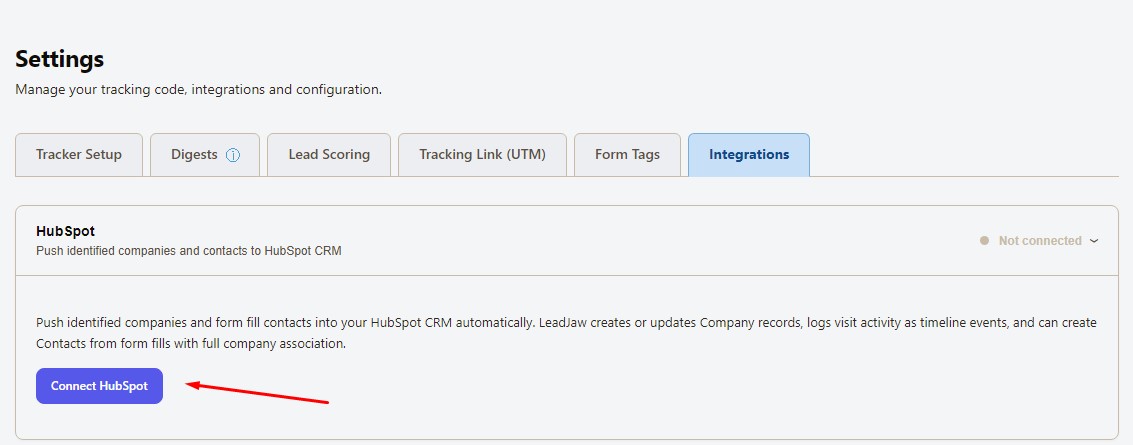
Click the Connect HubSpot button next to the HubSpot integration. This takes you to the HubSpot settings page at app.leadjaw.com/settings-hubspot.php.
On this page, click the Connect HubSpot button. You will be redirected to HubSpot to authorise the connection.
Step 3 - Authorise LeadJaw in HubSpot
HubSpot will show you a permissions screen listing what LeadJaw is requesting access to. LeadJaw requests permission to:
- Read and write company records
- Read and write contact records
- Read sales email data
- Write to the CRM timeline
Select the HubSpot account you want to connect, then click Connect app to grant access.
You will be redirected back to LeadJaw automatically once authorisation is complete.
Step 4 - Confirm the connection
Once you are back in LeadJaw, the HubSpot settings page will show your connected portal name and the connection status. LeadJaw creates the custom company properties in your HubSpot portal automatically on first connect. These include:
- LeadJaw Lead Score - the score assigned based on visit behaviour
- LeadJaw First Seen - the date the company first visited your site
- LeadJaw Last Seen - the date of their most recent visit
- LeadJaw Visit Count - total number of sessions recorded
- LeadJaw Source - always tagged as LeadJaw so you can filter by origin
- LeadJaw Profile Link - a direct link back to the visitor record in your LeadJaw dashboard
You do not need to create these properties manually. If any already exist from a previous connection, LeadJaw will use them as-is.
Step 5 - Configure your push settings
From the HubSpot settings page you can choose how LeadJaw sends companies to your CRM:
- Automatic mode - LeadJaw pushes identified companies to HubSpot as they are identified, subject to any score threshold you set
- Manual mode - you push companies to HubSpot individually from your visitor dashboard
You can also set a minimum lead score threshold for automatic pushes, so only companies showing meaningful intent are sent across. Lower the threshold to capture more companies, raise it to focus on high-intent visitors only.
Step 6 - Enable form fill contact sync (optional)
If you want LeadJaw to create contact records in HubSpot when a visitor submits a form on your site, switch on Form fill contact sync from the settings page. This is off by default.
When enabled, LeadJaw creates a contact record for each form submission and associates it to the identified company. The form fill is logged as an activity on the contact timeline in HubSpot.
Personal email addresses from free providers such as Gmail and Outlook will still generate a contact record, but LeadJaw will not create a company record for those domains.
Verifying the integration is working
The simplest way to confirm everything is working is to trigger a manual push from your LeadJaw dashboard. Go to any identified company in your visitor list, open their profile and click Push to HubSpot. Then check your HubSpot Companies list for the record.
If the company already exists in HubSpot, the record will be updated rather than duplicated. LeadJaw uses the company domain as the deduplication key.
Disconnecting the integration
To disconnect, go to Settings - HubSpot and click Disconnect. This removes the OAuth connection and stops all future pushes. Company and contact records already in HubSpot are not affected.
Troubleshooting
The Connect HubSpot button is greyed out. This usually means your LeadJaw account is on a Starter or Growth plan. The HubSpot integration is available on Pro. Upgrade from your account settings.
I was redirected back to LeadJaw but the connection shows as failed. This can happen if you cancelled the HubSpot authorisation screen or if your HubSpot session had expired. Try again and make sure you click Connect app on the HubSpot permissions screen rather than closing it.
Companies are not appearing in HubSpot. Check that automatic mode is switched on and that your lead score threshold is not set too high. You can also test with a manual push from a specific visitor profile.
I can see duplicate company records in HubSpot. This can happen if the same company has records under different domains. LeadJaw deduplicates on domain, so if HubSpot has the same company stored under two different domain values, both records may receive updates. Merging the duplicates in HubSpot resolves this.
If you run into anything not covered here, contact us at www.leadjaw.com/contact or use the live chat in your LeadJaw dashboard.